Self check-in kiosks that print the badge by themselves.
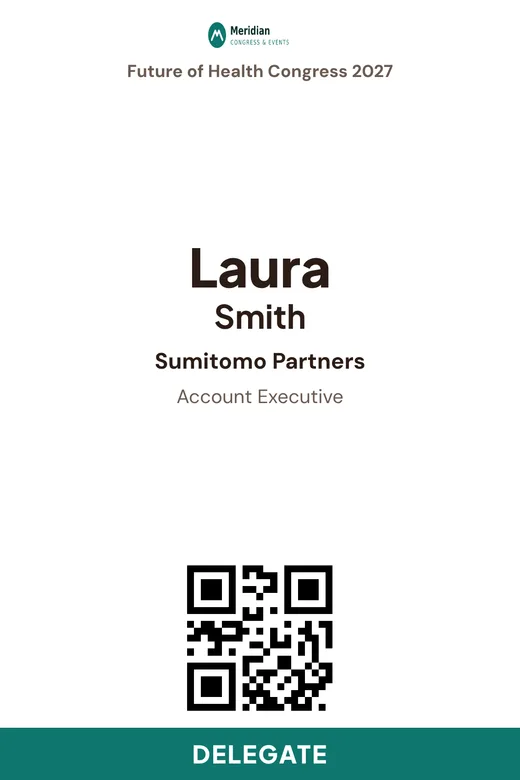
Put a tablet or touch screen next to a badge printer. Attendees scan their QR ticket or type their email, the badge prints, and the screen is ready for the next guest. No queue at the desk, no staff needed at the kiosk.
From $99 per event · No ticket commission · No annual contract · No app or kiosk rental
See a sample event website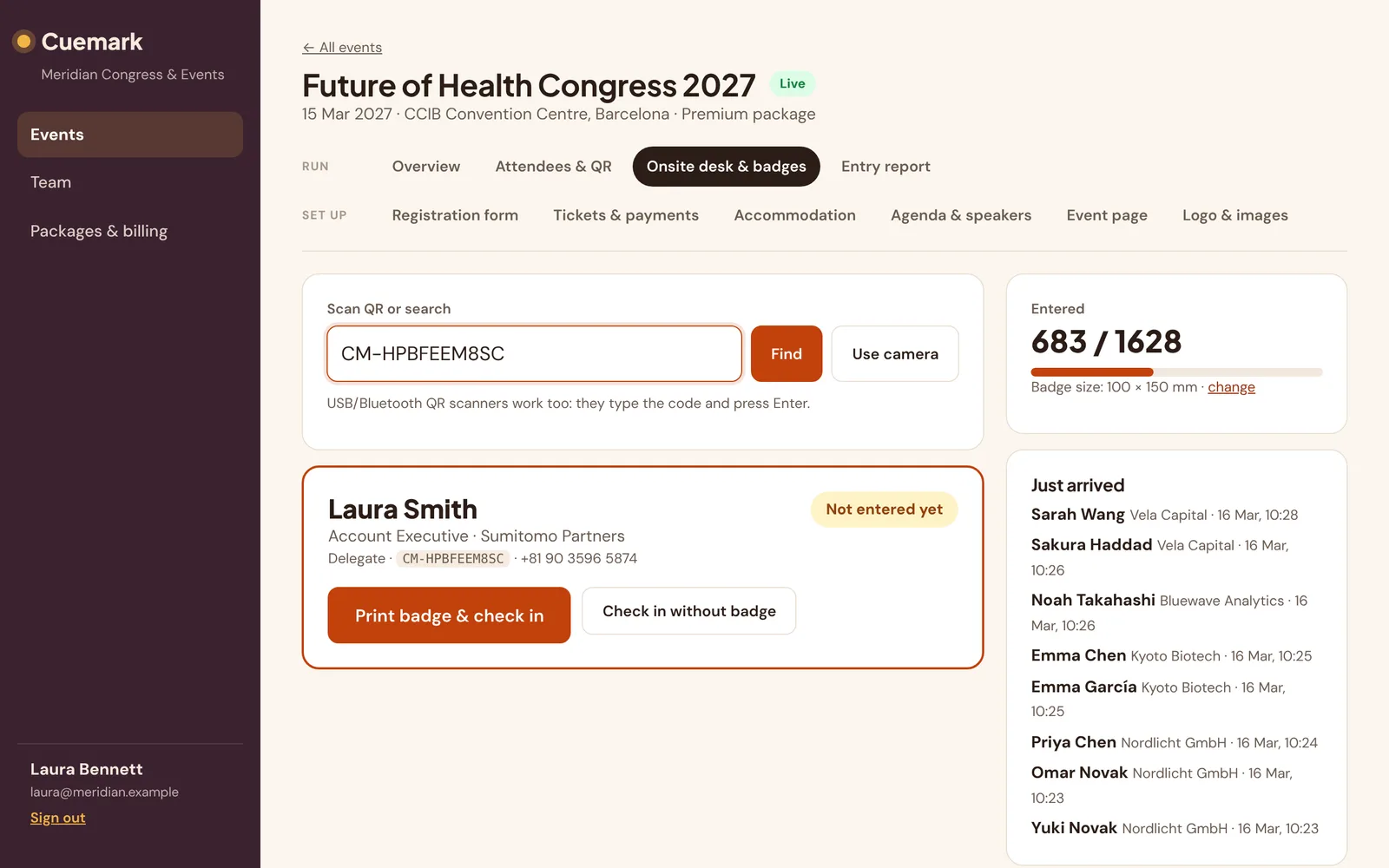
What you need for one kiosk
A tablet or touch screen
Any recent iPad, Android tablet or touch laptop with a camera. A USB or Bluetooth QR scanner makes scanning faster.
A badge printer
Any printer the device can print to. Label printers with 100×150 mm or 4×6" rolls are quick and cheap per badge.
A stand and power
A tablet stand at waist height and a power outlet. That’s it — no rented kiosk, no shipping.
Plan one kiosk per ~150–200 arrivals per hour at peak, plus one staff desk for exceptions.
How the kiosk works
Create a kiosk link
In your event, open Stations & kiosks and create a self check-in kiosk. You get a private link and a QR code to open it on the device.
Open it on the kiosk
Open the link on a tablet, touch screen or laptop next to the badge printer. In Chrome kiosk mode the badge prints without a print dialog.
Guests check themselves in
They scan the QR ticket with the camera or a USB scanner, or type their email. The badge prints and they are marked as entered.
Built for busy registration areas
Shows only the guest’s own badge
The kiosk never displays the attendee list, emails or phone numbers. A guest only sees their own name and badge.
Scan or type your email
Works with the device camera, USB and Bluetooth QR scanners, and an email lookup for guests who left their ticket at home.
Unpaid and cancelled tickets stopped
Registrations that are not confirmed get a polite message to visit the registration desk instead of a badge.
Resets itself
After printing, the screen returns to the start for the next person. An idle timer clears anything left half-typed.
Revoke any time
Each kiosk has its own link. Create a new link or revoke it from the panel and the old one stops working at once.
Works next to staff desks
Run kiosks for the self-service crowd and staff desks for VIPs, speakers and exceptions — all on the same live attendee list.
Frequently asked questions
What hardware do I need for a self check-in kiosk?
A tablet, touch screen or laptop with a camera or a USB QR scanner, and any badge printer the device can print to. No special kiosk hardware or app is required.
Can the badge print without a print dialog?
Yes. Start Chrome with the --kiosk --kiosk-printing options and set the badge printer as the default printer. The badge then prints straight away.
Can attendees see other people’s details on the kiosk?
No. The kiosk only shows the scanned attendee’s own badge and a short status message. The attendee list stays in your panel.
What if a guest forgot their QR ticket?
They can type the email they registered with on the kiosk. If several matches exist or something is wrong, the kiosk sends them to the staff desk.
More Cuemark features
Run your next event with Cuemark.
Your first event is free for up to 25 attendees — no card needed. Prefer a walkthrough? Book a demo on our home page.
Start free — first event on us